Computing Measurements for Graphs
You can compute measurements and add other scalar data to graphs in the Compute Measurements dialog.
Right-click the graph to which you want to add scalar values and then choose Compute Measurements in the pop-up menu to open the Compute Measurements dialog, shown below.
Compute Measurements dialog
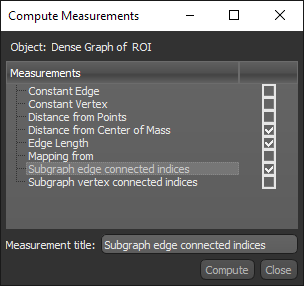
The following categories and items are available for graphs.
| Item | Description |
|---|---|
| Constant Edge | Adds a constant edge value. You can enter a title for the measurement and choose the constant value. |
| Constant Vertex | Adds a constant vertex value. You can enter a title for the measurement and choose the constant value. |
| Distance from Points |
Adds distance measurements computed from the mean position of a series of points.
Note You must first create a points set with the Points tool to enable this option (see Using the Points Tool). |
| Distance from Center of Mass | Adds distance measurements computed from the graph's center of mass. |
| Edge Length | Computes the Euclidean length of the line connecting two branches or a branch and an end node. |
| Mapping from | Lets you map the scalar values from another object, such as an image, multi-ROI, or scalar mesh (see Mapping Vertex Scalar Values to Graphs). |
| Subgraph edge connected indices | Creates a sub-graph in which connected edges are grouped together. |
| Subgraph vertex connected indices | Creates a sub-graph in which connected vertices are grouped together. |
How to Compute a Measurement for a Graph
- Right-click the graph to which you want to add scalar values and then choose Compute Measurements in the pop-up menu.
The Compute Measurements dialog appears.
- Select the measurements and other values that you want to add to the selected graph, as well as any other requirement(s).
- Click Compute.
The computed measurements and other values are selectable in the Scalar information box (see Graph Settings).
